¶ Introduction
- The API request type for COEX is HTTP. In online mode, the controller IP is the actual device IP, with port number 8001. In offline mode, the controller IP is 127.0.0.1, and the port number is 10001.
- Users can integrate the API into other software to control the device. This document primarily introduces how to use third-party software Companion to call the API interface for device control.
- System Topology

¶ Introduction of API Test Software
- When using API to implement certain functions—such as adjusting screen brightness or switching presets—it is usually necessary to include information like screen IDs or cabinet IDs in the request body. These details must be obtained from other API interfaces. In such cases, we can use API testing tools to retrieve screen, cabinet, or input source information, test complex API interfaces, and verify their effects.
- The COEX API website integrates an Apifox plugin, allowing direct calls to API interfaces. If users prefer not to use the plugin, they may utilize other testing tools according to their preferences. The API testing software used in this document is Postman.
- Postman Official Website:https://www.postman.com/
- COEX API Official Website:https://api.coex.novastar.tech/en/
¶ Postman Usage
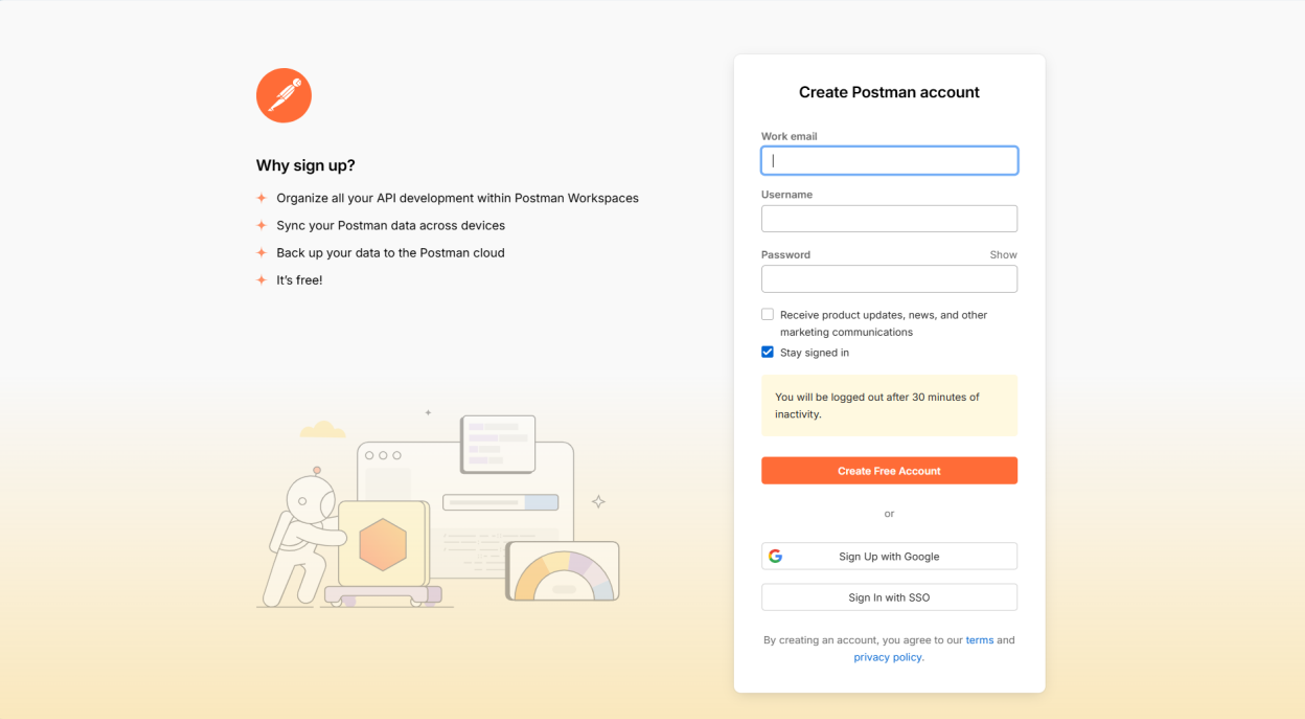
1. First, access the official website, register an account and log in to the software. If you already have an account, you can log in directly.
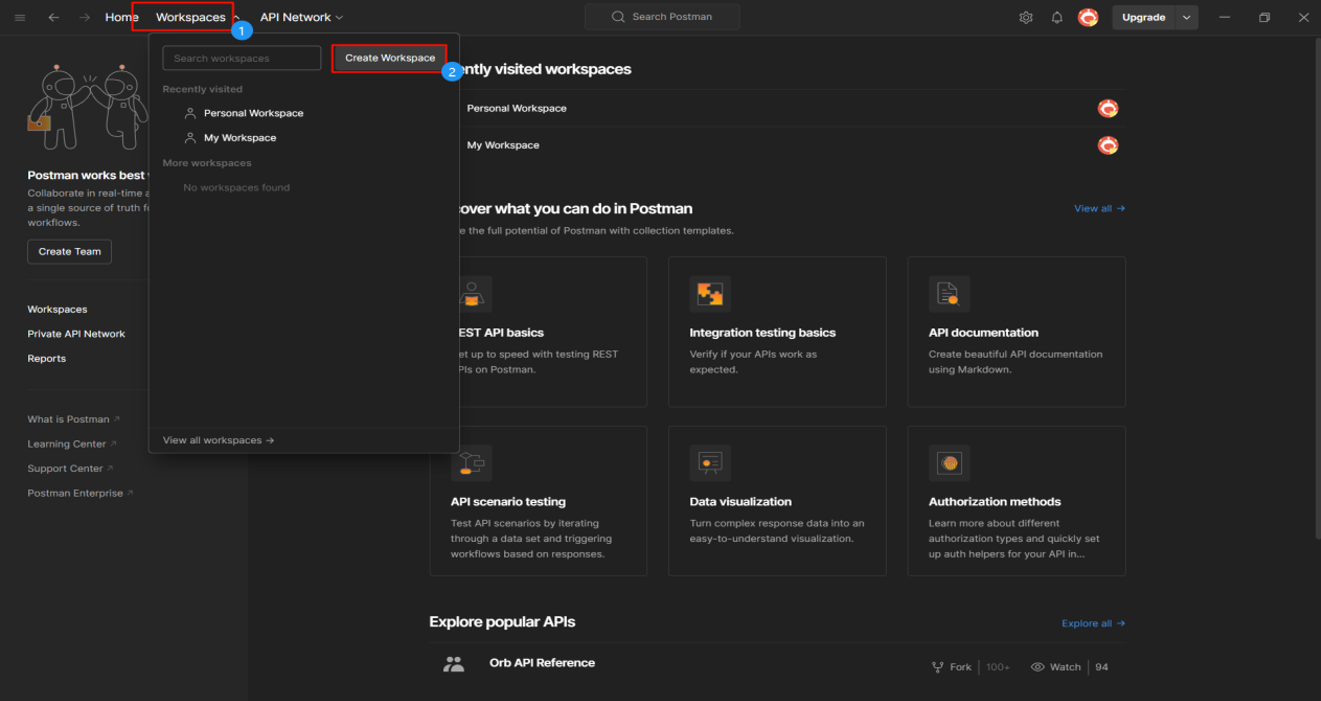
2. Create a workspace. You can establish new work space either individually or as a team. After sharing the workspace, you can invite team members to collaborate within the shared work environment.
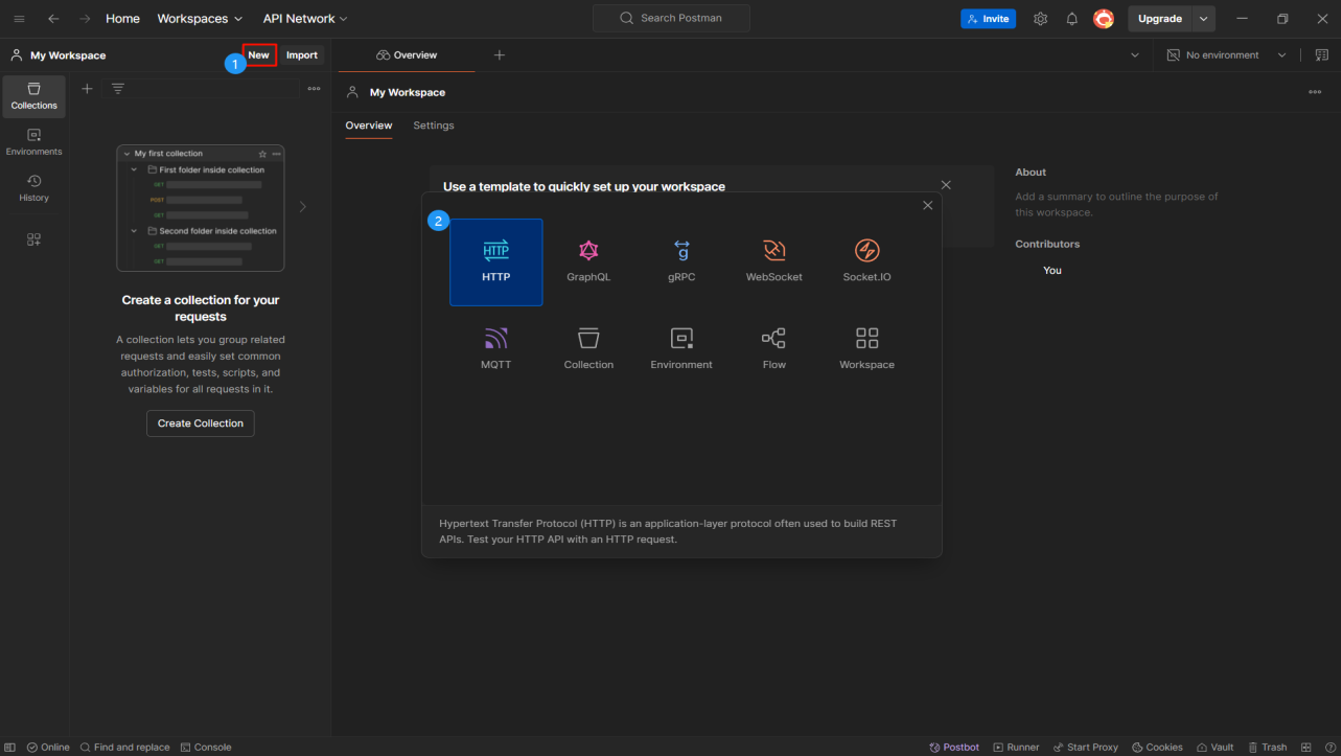
3. As needed, create new requests, collections, or environments. You can also directly import collections or environments, such as from files, folders, links, or by pasting raw text. The image below shows creating a new HTTP request.
4. Call the API interface. For example, retrieve device hardware information.
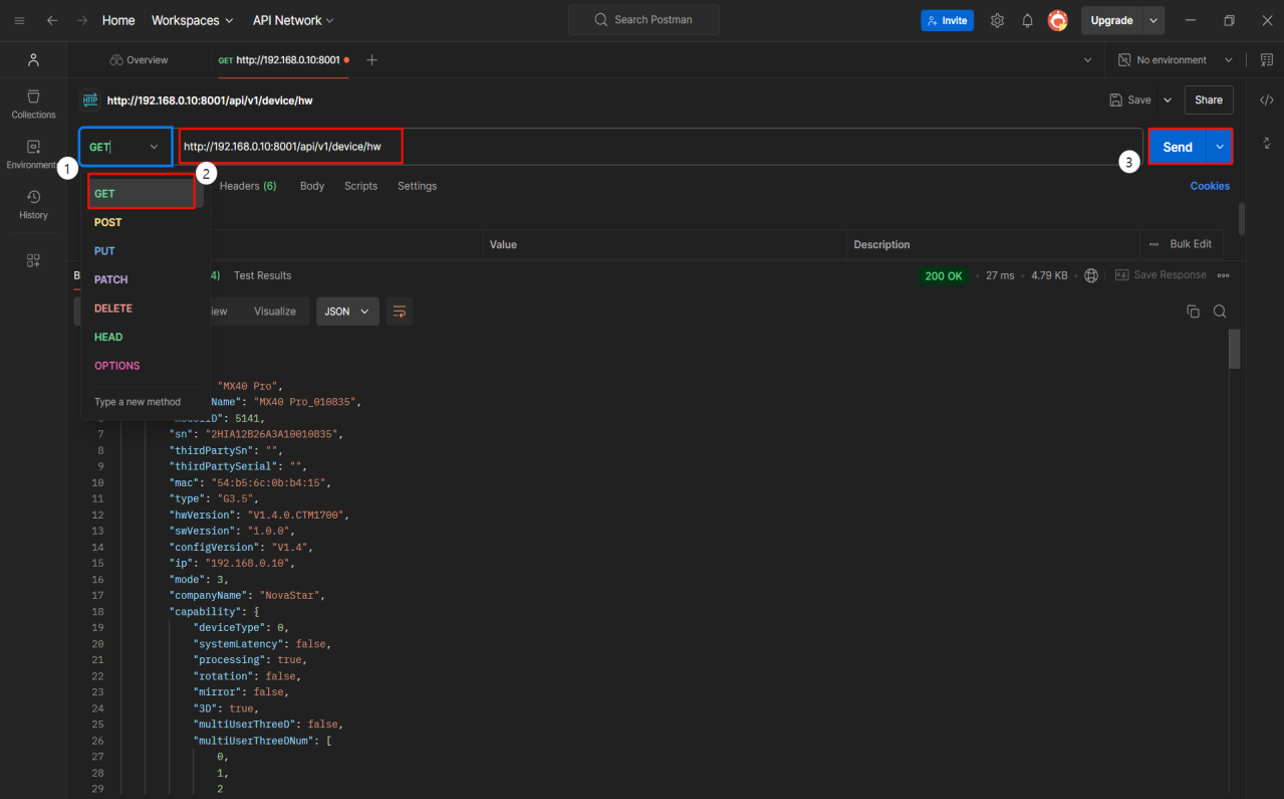
IP: 192.168.0.10 (Device IP Address)
Port Number: 8001
URL: http://192.168.0.10:8001/api/v1/device/hw (Request Address)
Request Type: GET, This API is used to retrieve relevant data. Other commonly used request methods include POST (create data), PUT (update data), and DELETE (delete data).
Response:
{
"code": 0, // If the response code is not 0, it indicates an error. Refer to the global response codes to analyze the cause of the issue.
"data": xxxxxx // Returned Result
"message": "Success"
}
Note:
On the COEX API official website, each API interface includes details such as request type, endpoint, request body, etc. Simply modify the device address, port, and parameters as needed.
¶ Postman Test Example
¶ 1. Retrieve Display Mode Parameters
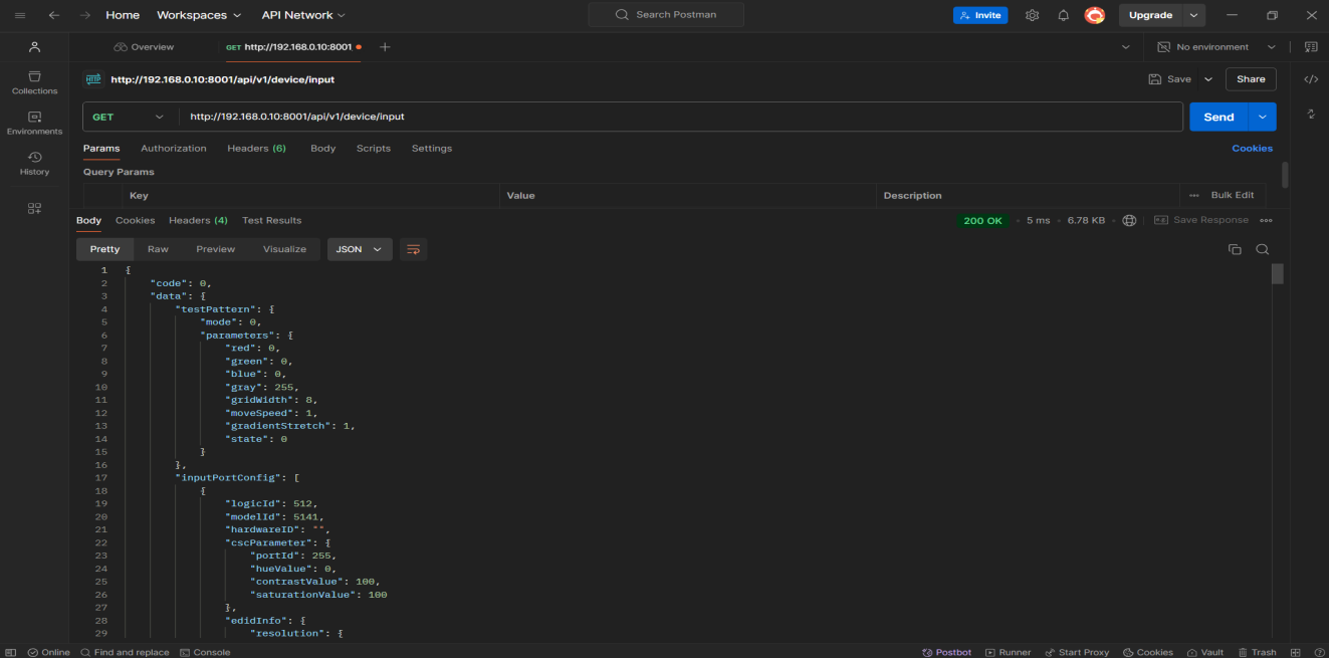
Display mode parameters include source information, EDID, etc. Similarly, we can also retrieve all required source information, screen information, and cabinet information.
Retrieve Input Source list: /api/v1/device/input/sources
Retrieve Screen Information: /api/v1/screen
Retrieve All Cabinet Information: /api/v1/device/cabinet
Note:
id: Refers to the source ID, where each source has a unique identifier. This ID is used when configuring source-related parameters such as EDID or source information overwrite.
groupId: Refers to the source group ID, designed to support mosaic sources. For example, in CX40 Pro devices, all four HDMI sources share the same groupID, and switching one source will switch all four simultaneously. Currently, MX-series devices assign one groupID per source.
¶ 2. Set Color Space
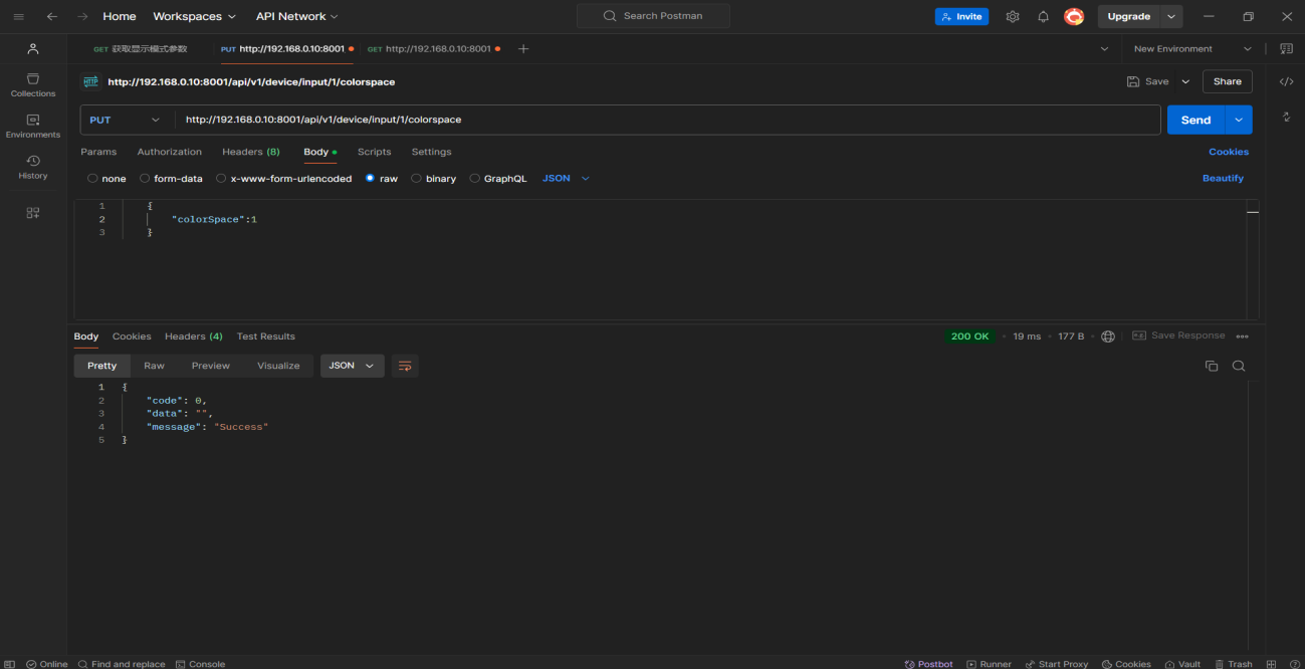
First, retrieve all source information, and then find the corresponding source ID from the source information to use as the ID value in the current request, thereby generating the final URL.
¶ 3. Set Gamma
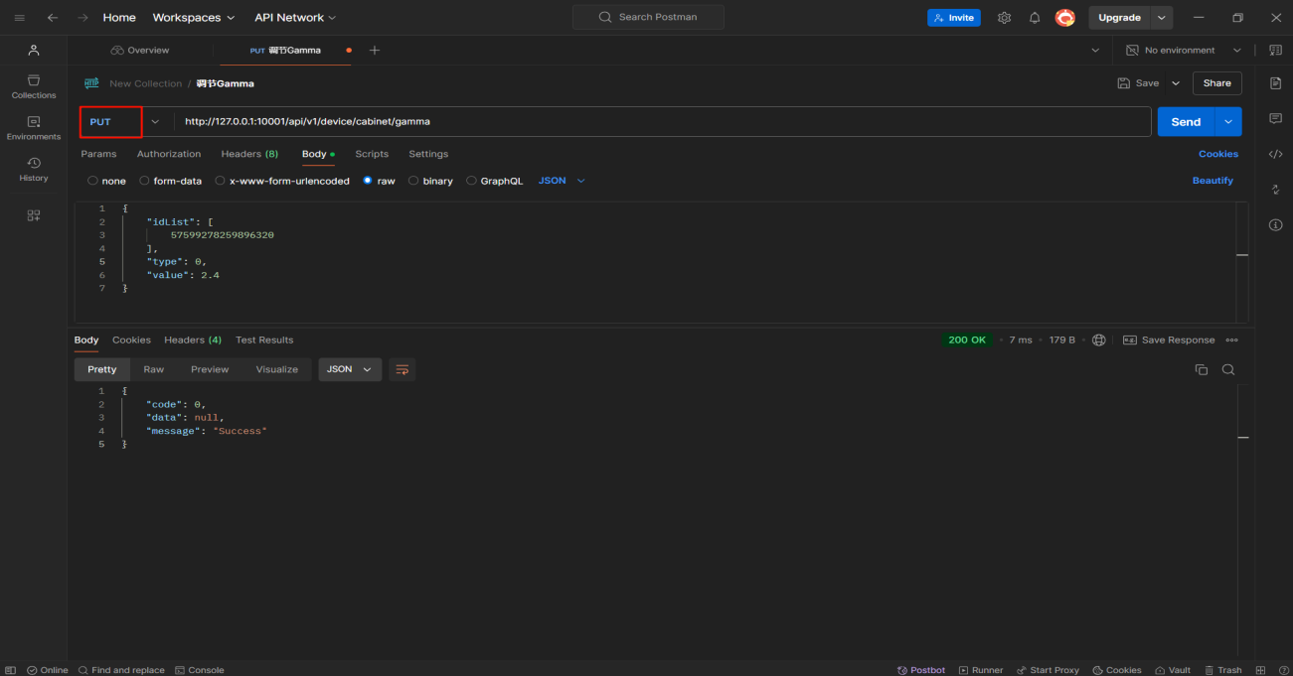
When adjusting Gamma, you need to enter cabinet ID for each cabinet that requires adjustment.
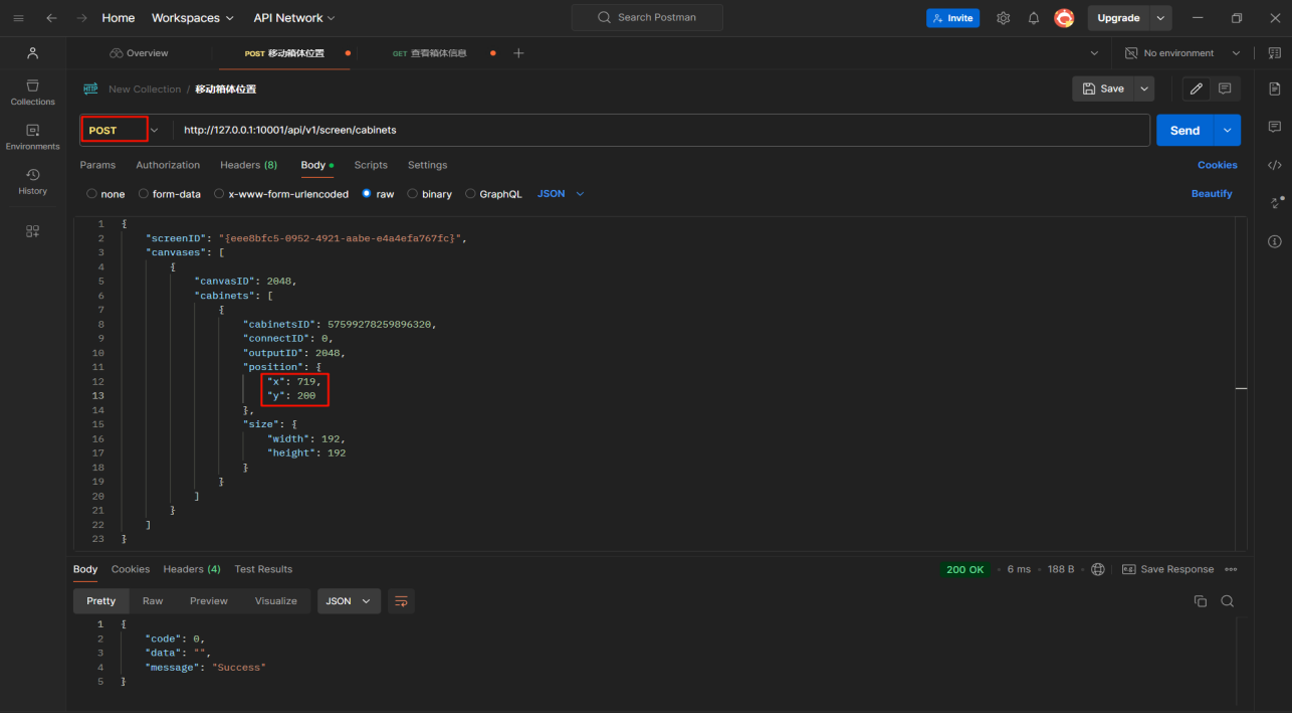
¶ 4. Change cabinet position
First need to retrieve the screen ID and canvas ID.
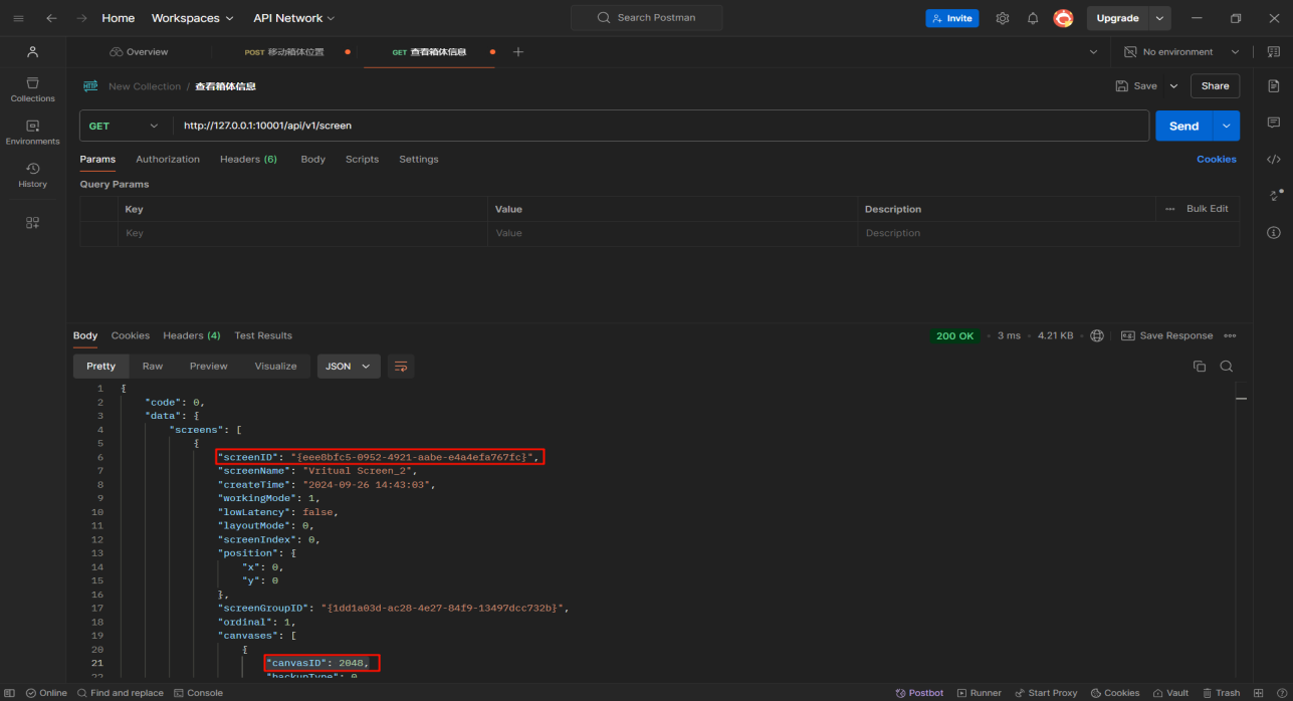
Configure the first cabinet with Ethernet ports 4 to the position (719, 200), with cabinet size of 192×192.
We consistently enhance and refine the content of our Wiki articles.
If you find any mistakes or errors, please contact us.
Your continuous feedback and support will help us further improve our products and content.